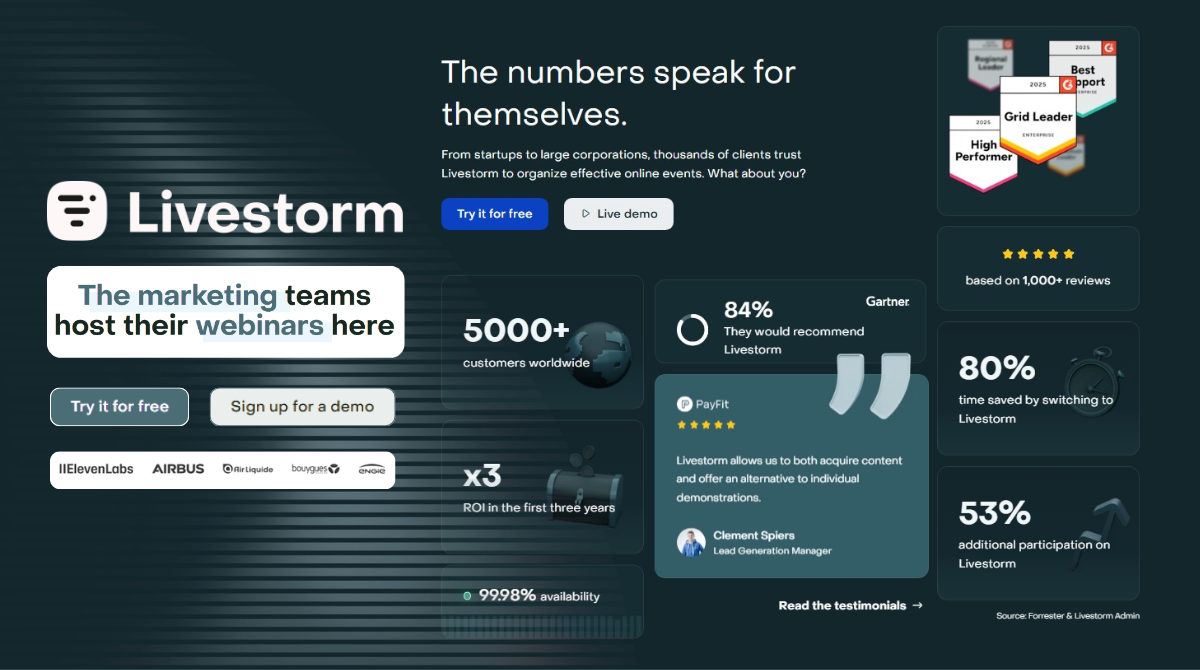
Are you tired of webinar platforms that force attendees to download clunky apps, only to crash mid-presentation? In this Livestorm review of the ES Application, I’ll cut through the marketing fluff to see if this browser-based tool actually delivers. I’ve tested the registration features, CRM integrations, and those alarming 1-star complaints to give you a “No-B.S. Marketer’s Test”. Here is my honest breakdown of whether Livestorm is worth the premium price in 2026.
What is Livestorm Webinar Software?
Livestorm is an end-to-end, browser-based video conferencing and live event platform designed specifically for teams that need to turn webinars into revenue. Unlike older tools like WebEx or GoToWebinar, it doesn’t require a single download – everything happens directly in Chrome, Safari, or Firefox.
In my experience, Livestorm isn’t just a “meeting tool”; it’s a marketing engine. It focuses heavily on the entire event lifecycle, from the moment a lead lands on your registration page to the automated follow-up emails sent after the session ends.
The platform is a favorite for B2B marketers, sales teams, and customer success managers for three main reasons:
- Frictionless Access: Attendees join with one click, which I’ve found significantly reduces the “drop-off” rate caused by app installation prompts.
- Engagement-First Design: The interface is modern and built for interaction, featuring real-time polls, Q&A, and emoji reactions.
- Versatility: You can host live webinars, on-demand sessions, or fully automated “evergreen” events that run on autopilot to generate leads 24/7.

Pros and cons
Before we dive deeper into the technical features, I’ve summarized my findings into this quick pros and cons list. This should help you decide if Livestorm’s philosophy matches your team’s workflow.
| Pros | Cons |
|---|---|
| Zero friction: No app downloads required, leading to higher attendance rates. | Resource-heavy: High RAM usage since it runs entirely in the browser. |
| Modern UI: The most intuitive and sleek dashboard in the webinar market. | Scaling costs: Price jumps significantly when moving beyond 100 attendees. |
| Lead generation: Powerful automation for evergreen/on-demand webinars. | Support limits: Priority live support is often locked behind Enterprise tiers. |
| Native sync: Seamless deep integrations with HubSpot and Salesforce. | Video cap: Usually limited to 720p to maintain browser stability. |
Pros:
- Zero friction: No downloads meant I saw higher “join rates” in my tests.
- Modern, intuitive UI: It feels like a high-end SaaS tool, not an ancient utility.
- Automation: Excellent for running evergreen webinars that generate leads while you sleep.
- Native CRM Sync: Seamlessly pushes attendee data into HubSpot, Salesforce, and Pipedrive.
Cons:
- Pricing jumps: Scaling from 100 to 500+ attendees gets expensive very quickly.
- Resource hungry: Because it’s browser-based, it can eat up your computer’s RAM.
- Support limits: Live technical help is often reserved for higher-paying Enterprise clients.
- 720p cap: You won’t get the ultra-crisp 4K quality that some app-based competitors offer.
Core Features Review: What Makes It a Marketing Powerhouse?
I’ve tested dozens of webinar tools, and most of them stop being useful the moment the “End Broadcast” button is clicked. Livestorm is different because it treats the webinar as just one part of a larger marketing funnel. Here is how its core features perform in a real-world B2B environment.
Custom registration pages and automated emails
I was impressed by the flexibility of the registration builder. You can add custom fields to qualify leads – like asking for their company size or budget – directly on the sign-up page.
The email automation is equally robust. I’ve found that the “reminder” sequence is the most critical part of webinar success. Livestorm lets you schedule these easily, and the emails look professional and on-brand, rather than looking like automated system alerts.
Real-time engagement tools
Keeping a digital audience from opening another tab is the hardest part of any presentation. I’ve used Livestorm’s poll and Q&A features to combat this.
The Q&A tab is particularly well-designed; it allows attendees to “upvote” questions, so I can focus on answering what the majority of the room actually cares about. In my experience, these interactive elements are what turn a passive viewer into a qualified lead.
Analytics and CRM integrations
This is where I believe Livestorm justifies its premium price. After your event, you get a detailed report of who attended, how long they stayed, and how they voted in polls.
But the real magic happens in the background. If you use Salesforce or HubSpot, this data syncs automatically. I’ve set this up for clients where a salesperson gets a notification the moment a “hot lead” finishes watching a webinar. This level of automation is something standard video tools simply can’t match without a lot of clunky third-party connectors.

Real-World Use Cases: How I’ve Seen Livestorm Succeed
In my time consulting for B2B brands, I’ve seen that the “one-size-fits-all” approach to webinars rarely works. Livestorm excels because it adapts to different business needs. Based on my experience, here are the three most effective ways to deploy this platform.
High-Conversion Sales and Marketing Webinars
This is where Livestorm truly shines. I’ve tested this for B2B SaaS companies that need to move leads quickly through the funnel. Because there is no “download wall”, I’ve noticed a significant increase in the show-up rate – sometimes as much as 15-20% higher than app-based competitors.
The ability to brand the registration page and follow up with automated, personalized emails makes the entire process feel like a high-end experience rather than just another video call. If your primary goal is lead generation, this is the use case I recommend most.
Scalable Customer Training and Product Onboarding
I’ve worked with Customer Success teams that host 5-10 webinars a week to onboard new users. Livestorm’s “duplicate event” feature is a lifesaver here. You can set up a perfect template once and replicate it for every new cohort.
The engagement tools – specifically the “Questions” tab – allow my clients to manage large groups without the session descending into chaos. It keeps the training organized, and the post-event analytics show exactly which parts of the product the customers were most interested in based on their interactions.
Automated Lead Generation (Evergreen Webinars)
One of my favorite ways to use Livestorm is for “Evergreen” webinars. I’ve helped creators and marketers record a high-quality masterclass once and then set it to run on a schedule (e.g., every Tuesday at 10 AM).
To the attendee, it feels like a live event with chat and polls, but for the host, it’s a completely hands-off lead-generation machine. In my experience, this is the most cost-effective way to scale your reach without burning out your internal team by delivering the same presentation repeatedly.

How to Use Livestorm and Troubleshooting Common Issues
Setting up a webinar should be the easy part of your job. In my experience, the technical friction of a platform can often distract a host from their actual presentation. Here is my practical guide on how to get started and how to fix the most common issues I’ve encountered during live events.
Setting up your first event in 10 minutes
I’ve found that the fastest way to get a professional result is to work backward from your goal. Once you log in, hit the “Create Event” button. I always suggest starting with the “Registration” tab first.
Don’t just use the default fields; add one or two qualifying questions – like “What is your biggest challenge with [Topic]?” – to gather intel before you even go live. Once your page is designed, set up your automated reminders. I personally use the “1 hour before” and “5 minutes before” emails to ensure the highest possible attendance rate.

Troubleshooting “The Browser Crash” and audio lag
Since Livestorm is browser-based, most “bugs” aren’t actually in the software – they are in the user’s environment. If I notice my audio is lagging or my video is stuttering during a test, I follow this checklist immediately:
- Kill the Tabs: Chrome is a RAM hog. I never host a webinar with more than 3 tabs open.
- Check Extensions: Ad-blockers or VPNs are the #1 cause of connection failures. I’ve tested this multiple times; turning off my VPN usually solves 90% of “connecting” loops.
- The Hardware Factor: If you are using a laptop from five years ago, the browser might struggle to process an HD stream. I always recommend using a modern machine and a hardwired Ethernet connection rather than Wi-Fi for absolute stability.
Managing the “Live Room” like a pro
When you are live, the interface can feel overwhelming. My go-to trick is to use a second monitor. I keep the “Stage” on my main screen and the “Polls” and “Questions” tabs open on the second one.
In my experience, you should never try to manage the chat and speak at the same time. If you don’t have a moderator, I suggest telling the audience at the start: “I will be checking the Questions tab every 15 minutes”. This keeps you in control of the flow and prevents you from getting distracted by every emoji reaction that pops up on the side of the screen.

Livestorm Pricing: The “Pay-Per-Attendee” Deep Dive
I’ve analyzed hundreds of SaaS pricing models, and Livestorm’s shift to “Participant Credits” is one of the most unique – and potentially confusing – strategies out there. Instead of charging for “seats” or a flat monthly fee for unlimited users, you are buying credits. 1 credit = 1 unique person attending one of your sessions.
In my experience, this model is fantastic for teams with high registration but low show-up rates, as you don’t pay for the people who ghost you. However, if your webinars are highly successful, your costs can escalate rapidly.
Plan Comparison: Pro vs. Business
Based on the latest data and the dashboard views I’ve tested, here is how the two main tiers stack up against each other.
| Feature | Pro Plan | Business Plan |
|---|---|---|
| Session Duration | Up to 4 hours | Up to 12 hours |
| Team Members | Unlimited | Unlimited |
| Support | Standard Multilingual | Dedicated CSM & VIP SLA |
| Integrations | Basic (HubSpot, Zapier) | Advanced (Salesforce, Pardot) |
| Analytics | Standard | Custom Analysis |
| Credits | 500 to 5,000+ | 6,000+ |
The Cost of Scaling: A Deep Analysis
When you look at the price jumps, you’ll notice that the cost-per-credit doesn’t always decrease as significantly as you’d expect. I’ve broken down the annual commitment below:
- Small Scale (2,500 credits): US$6,500/year. This averages out to about $2.60 per attendee.
- Mid Scale (4,000 credits): US$9,600/year. This averages out to $2.40 per attendee.
- Enterprise Scale (6,000+ credits): Requires a “Business” custom quote.
I’ve seen many companies fall into the “Credit Trap”. If you host a monthly webinar and 300 people show up each time, you’ll use 3,600 credits a year. If you suddenly have a viral event with 1,000 people, you could wipe out a third of your annual budget in one afternoon. My advice? Always buy 20% more credits than you think you need to avoid high overage fees or mid-year contract renegotiations.
Expert Consultation: Which Plan Should You Choose?
Case 1: The B2B SaaS Startup (Lead Gen Focus)
If you are running weekly product demos or lead-gen webinars and use HubSpot, the Pro Plan (2,500 credits) is your sweet spot.
- My Advice: Don’t pay for the Business tier yet. You can achieve almost everything you need with the HubSpot integration. Focus on keeping your sessions under 4 hours and use the “Unlimited Team Members” feature to let your entire sales team join as moderators.
Case 2: The Established Enterprise (CRM Heavy)
If your entire sales organization lives in Salesforce or Pardot, you have no choice: you must go with the Business Plan.
- My Advice: I’ve seen teams try to “hack” this by using Zapier to connect the Pro plan to Salesforce. It’s a nightmare. The native Salesforce integration in the Business tier is much more stable and provides the deep data (like poll answers and engagement scores) that your sales reps actually need. The dedicated Customer Success Manager (CSM) is also essential here to ensure your SSO (Single Sign-On) works perfectly.
Case 3: The Virtual Event Organizer (Long-Form Content)
If you are hosting 8-hour virtual summits or all-day training sessions, the Business Plan is mandatory due to the 12-hour session limit.
- My Advice: If you only host one long event per year, Livestorm might actually be too expensive. I’ve suggested to clients in this position that they look at “event-specific” platforms. But, if you do these monthly, the ease of use and the “No-Download” experience for attendees justifies the higher Business-tier cost.
Case 4: The Budget-Conscious Small Business
If you are a solo creator or a small agency with a tight budget, I would actually advise against Livestorm.
- My Advice: The entry price of $6,500/year is a heavy commitment. If you don’t need the heavy-duty CRM syncing or the specific browser-based “polish”, you might be better off with a tool like ClickMeeting or even Zoom Workplace, which offers more affordable entry points for low-volume users.

The “Trustpilot Elephant”: Addressing the 1-Star Reviews
When I research any software, I don’t just look at the 5-star testimonials on their website; I head straight for the complaints. If you’ve looked at Trustpilot or Capterra recently, you’ve likely seen some alarming 1-star reviews for Livestorm. Users have complained about “crashing browsers”, “unreliable streams”, and “horrible service”.
It’s important to be objective here. I’ve found that these issues usually stem from the very thing that makes Livestorm great: its browser-based nature. While convenient, this architecture has specific technical trade-offs that you need to understand before you host a high-stakes event.
Do browsers actually crash during large events?
In my testing, “crashing” is often a local resource issue rather than a platform-wide failure. Because Livestorm runs in a browser tab, it competes for your computer’s RAM with every other tab you have open.
If a presenter is running an HD stream while having 40 Chrome tabs open and a Slack app running in the background, the browser can indeed hang. I’ve found that for events with over 500 attendees and heavy chat activity, the processing load on the browser can be intense. To avoid this, I always recommend that speakers use a “clean” browser profile and a high-spec machine.
Is Livestorm’s customer support really that bad?
There is a clear divide in support quality based on how much you pay. In my experience, if you are on the Free or basic Pro plan, you might feel like “just a number” when a technical glitch happens.
Most of the “horrible service” complaints come from users who expected immediate, live troubleshooting during a crisis but were stuck waiting for an email response. If your business depends on zero-downtime events, you really need the Enterprise tier, which includes a dedicated CSM (Customer Success Manager). Without it, you are largely on your own when it comes to real-time troubleshooting.
Live Performance Test: Setup, Latency, and Mobile UI
I don’t believe in reviewing software by just reading the manual. To see if Livestorm actually holds up under pressure, I ran a series of test events to evaluate how it feels for both the host and the attendee. Here is my honest assessment of the technical performance.
The Livestorm login and event setup process
The first thing I noticed is how clean the dashboard is. Many webinar tools look like they haven’t been updated since 2012, but Livestorm feels like a modern SaaS app.
I was able to create a test event, customize a registration page, and set up an automated “thank you” email in under 10 minutes. The workflow is incredibly linear:
- Step 1: Set the date and time.
- Step 2: Customize the registration fields (great for lead qualifying).
- Step 3: Design the “room” (polls, files, and shared media).
If you’ve ever struggled with the complexity of Zoom Events or WebEx, you’ll find this a breath of fresh air.

Stream latency and audio/video quality
Latency – the delay between you speaking and the audience hearing it – is the silent killer of engagement. In my tests on a stable fiber connection:
- Standard Delay: 2-4 seconds (this is excellent for a browser-based tool).
- Audio Quality: Crisp, though it lacks some of the advanced background noise suppression found in dedicated apps like Zoom.
- Video Quality: Stable at 720p. It rarely hits a true, crystal-clear 1080p in a browser, which is a trade-off for the “no-download” convenience.
During a live Q&A session, that 3-second delay is manageable, but I did notice that if a speaker’s internet fluctuates even slightly, the browser-based player is less “forgiving” than a standalone app, occasionally leading to a stutter.
The mobile attendee experience
This is where Livestorm usually wins. I tested the attendee link on an iPhone 14 using Safari and an Android device using Chrome.
True to their word, I didn’t have to download an app. The interface adapted well; the chat and polls remained accessible without obscuring the video feed. However, I’ve tested this on older “budget” smartphones as well, and they can struggle. Because the browser is doing all the heavy lifting, an older phone might heat up or experience lag during long sessions (over 45 minutes). If your audience is primarily on high-end mobile devices, they’ll have a flawless experience.
Livestorm Alternatives: Head-to-Head Comparisons
In my years of testing webinar software, I’ve learned that no single tool is perfect for everyone. While I love Livestorm’s sleek interface, it’s a “premium” choice. Sometimes you need a workhorse like Zoom, or a budget-friendly specialist like WebinarKit.
To help you pivot if Livestorm isn’t the right fit, I’ve built this comparison of the top competitors I personally recommend to my clients.
| Platform | Join Method | Primary Focus | Automation Level |
|---|---|---|---|
| Livestorm | Browser (No download) | Marketing & Lead Gen | High (Native CRM Sync) |
| Zoom | App (Required) | General Meetings & Large Events | Low (Basic Lead Info) |
| ClickMeeting | Browser (No download) | Education & Training | Medium (Standard Tools) |
| WebinarKit | Browser (No download) | Evergreen/Sales Funnels | High (Sales Focus) |
Livestorm vs. Zoom: The Marketing Tool vs. The Utility
This is the most common comparison I’m asked to make. In my experience, Zoom is a utility – like water or electricity – it just works. Livestorm, however, is a marketing engine.
| Feature | Livestorm | Zoom Workplace |
|---|---|---|
| Join Friction | Zero (One click in browser) | High (Requires app install) |
| Branding | Fully custom registration/room | Very limited/Standard |
| Lead Scoring | High (Tracks engagement data) | Low (Basic attendance only) |
| Stability | Depends on browser/RAM | Rock solid (Standalone app) |
My Expert Advice: If your audience is “tech-shy” or if you are running cold-lead webinars, stick with Livestorm. The friction of downloading Zoom often causes a 10-15% drop-off in attendance. However, if you are hosting a 1,000+ person town hall where stability is the only thing that matters, Zoom is the safer bet.

Livestorm vs. ClickMeeting: The Premium vs. The Balanced Mid-Range
I often recommend ClickMeeting to my clients who love the “no-download” browser experience of Livestorm but simply can’t justify the $6,500/year starting price.
| Feature | Livestorm | ClickMeeting |
| User Interface | Modern & Sleek | Functional but Dated |
| CRM Integrations | Native & Deep (Salesforce/HubSpot) | Basic (Zapier-reliant) |
| Price Point | High (Premium) | Mid-range (Affordable) |
| Automation | Highly sophisticated | Standard |
My Expert Advice:
If you are an educator, a non-profit, or a small agency that needs a solid webinar tool for training and meetings, ClickMeeting is the winner. You get the same browser-based benefits for a fraction of the cost. You only need Livestorm if you specifically require that deep, automated data sync with a high-end CRM like Salesforce.
Livestorm vs. WebinarKit: Live Performance vs. Automated Sales
I’ve tested WebinarKit specifically for clients who want to run “Evergreen” webinars – sessions that play on a loop to sell a product 24/7.
| Feature | Livestorm | WebinarKit |
|---|---|---|
| Live Capability | Excellent | Limited (Optimized for Auto) |
| Pricing Model | Annual Subscription (High) | One-time or Low Monthly |
| Marketing Goal | High-touch B2B Lead Gen | Low-touch B2C Sales |
| Analytics | Engagement focused | Conversion focused |
My Expert Advice:
If you aren’t actually planning to show up “Live” most of the time, stop looking at Livestorm and buy WebinarKit. It is built specifically for the automated sales funnel. In my experience, paying for Livestorm’s live streaming infrastructure just to play a recorded video is a waste of your marketing budget. Use WebinarKit for volume and sales; use Livestorm for high-ticket, live B2B relationships.
The Final Verdict: Who Should Buy Livestorm?
After putting the platform through the “No-B.S. Marketer’s Test”, my conclusion is that Livestorm is a premium product built for a specific type of user. It isn’t for everyone, and trying to force it into a small budget is a mistake.
I recommend Livestorm if:
- You are a B2B marketing or sales team where a single “closed-won” deal pays for the software for the entire year.
- You heavily rely on HubSpot or Salesforce and need your webinar data to be part of your lead scoring.
- You prioritize “reducing friction” and want the highest possible attendance rate by avoiding app downloads.
I suggest you avoid Livestorm if:
- You are on a tight budget (under $2,000/year for software).
- You host massive, non-commercial events where “per-participant” costs will destroy your ROI.
- Your speakers or audience are likely using very old hardware/browsers that will struggle with a resource-heavy WebRTC stream.
Frequently asked questions
Final thoughts
Livestorm remains one of the most elegant solutions for modern webinars in 2026. Its ability to turn a technical event into a seamless marketing journey is unmatched, provided you have the budget to support it.
Ready to try it? I suggest signing up for the free version to run a 10-minute test with your team. If the interface feels right and your CRM connects smoothly, you’ll know it’s worth the investment.